Login main title
Login main caption

3.
Click to choose from various filtering options.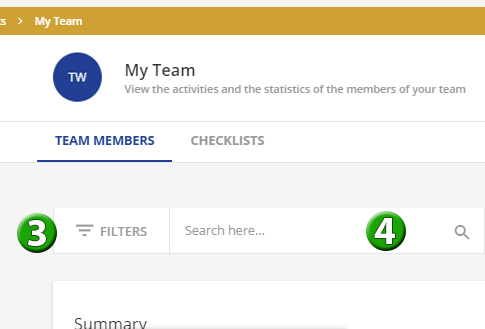
4.
Search for the employee on your team by entering the Employee ID in the Search bar and clicking the magnifying glass .5.
This area gives you number of employees with expired or overdue training certifications. Action may be needed to resolve.
6.
There will be an individual card for each employee that is a direct report.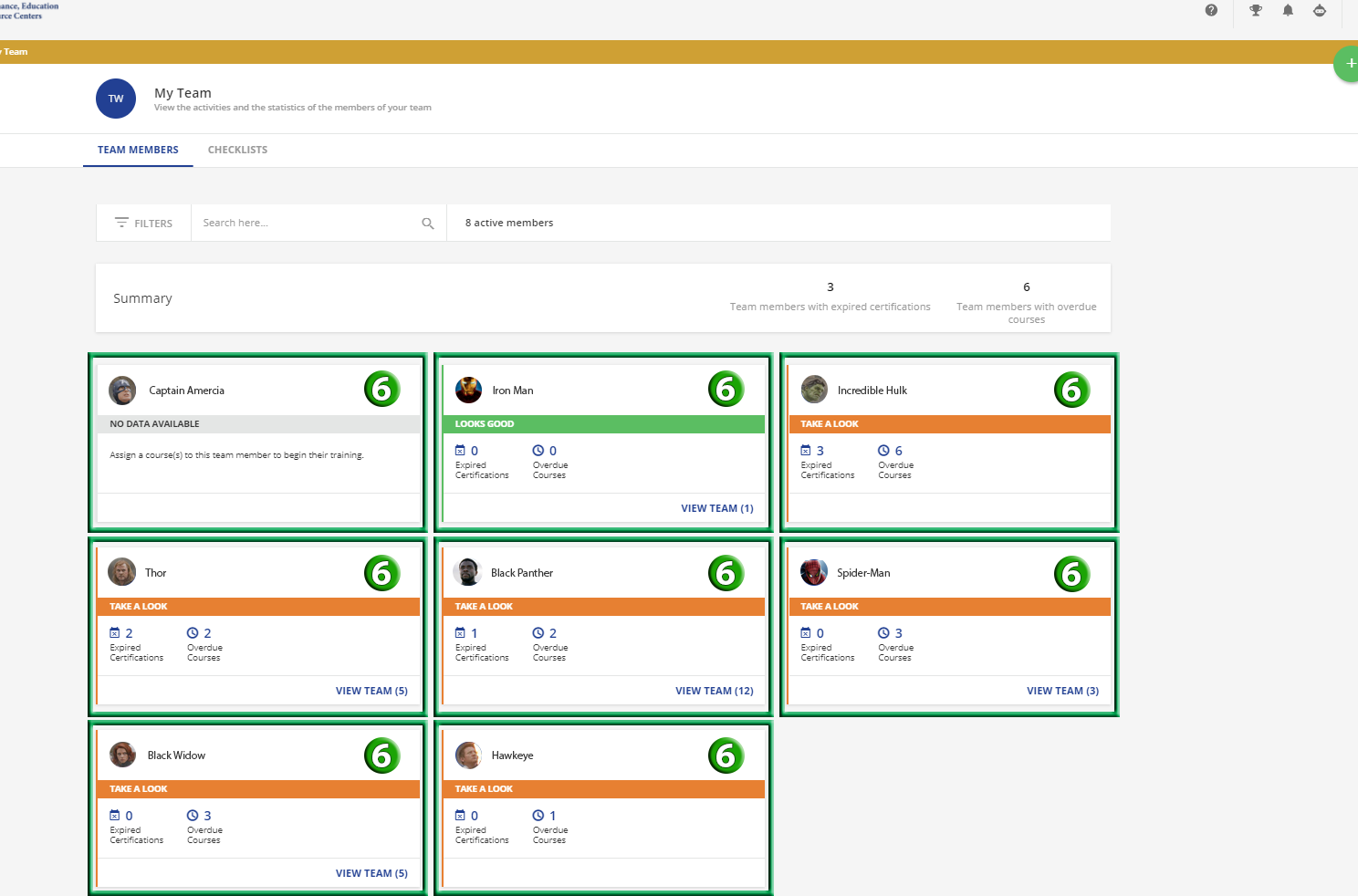
7.
Each card will indicate any Expired Certifications or Overdue Courses. Click the words to retrieve information for the employee.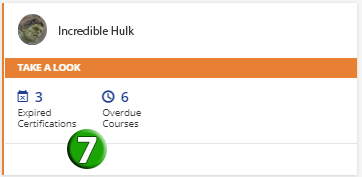
8.
Hover over the top of the employee card in line with the Employee name and 3 dots will appear to upper right on Employee Tile.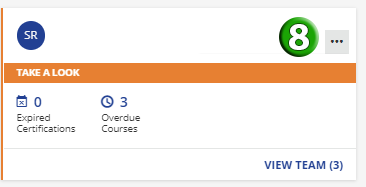
9.
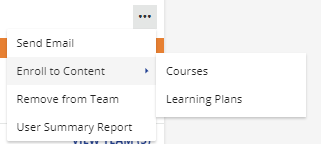
Click the three (3) dots to access the Employee Management options.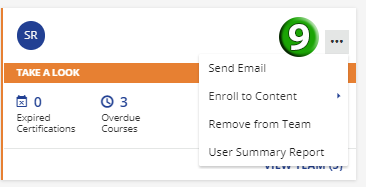
10.
Select from the following options:- Send Email
Send employee email direct from Learning Center through Outlook. - Enroll to Content
Enroll the employee into a Course or Learning Plan.If the training is for an in-person class, the employee must pick date and time to attend on the course page.
The option to enroll will be available to the employee after the supervisor (you) has enrolled them in the course. - Remove from Team
Remove the selected employee from your Team.
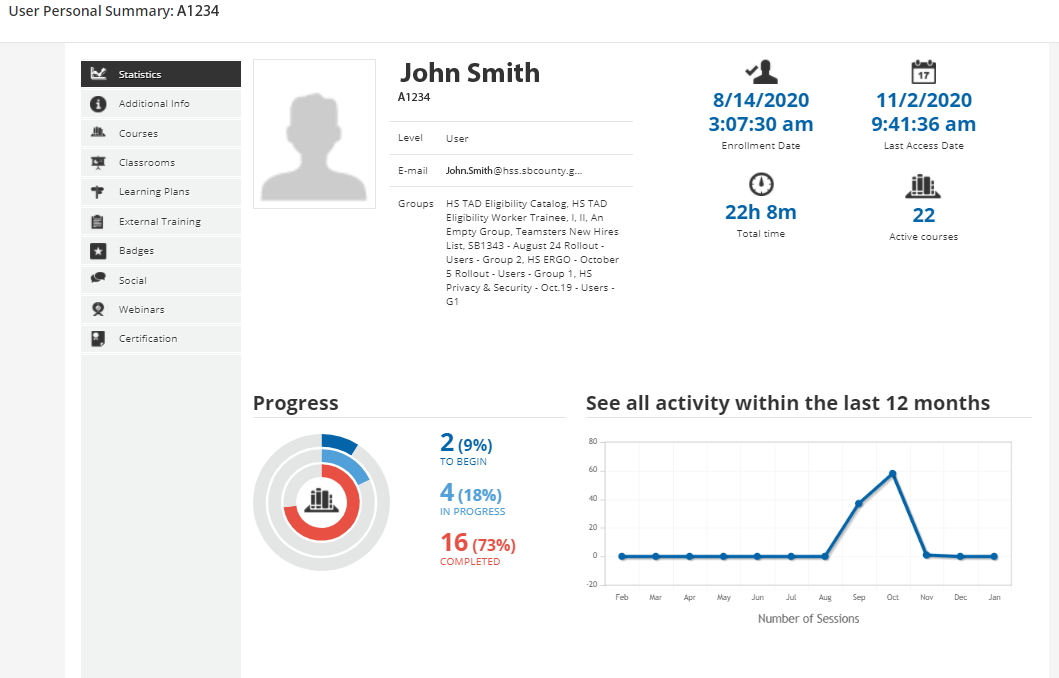
- Use Summary Report
Access employee transcript and activity information.
11.
If a team member is a supervisor or manager, you may click theVIEW TEAM (x)link in the bottom right corner of that employee tile and you will be able to view the statistics for that supervisor/Manager's Team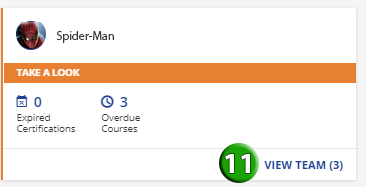
NOTE:
The Employee Management options are different for supervisor/manager team members as they are not your direct team member.- Send Email
Send employee email direct from Learning Center through Outlook. - Remove from Team
Remove the selected employee from the manager's or supervisor's Team.
- Use Summary Report
Access employee transcript and activity information.
REPORTS
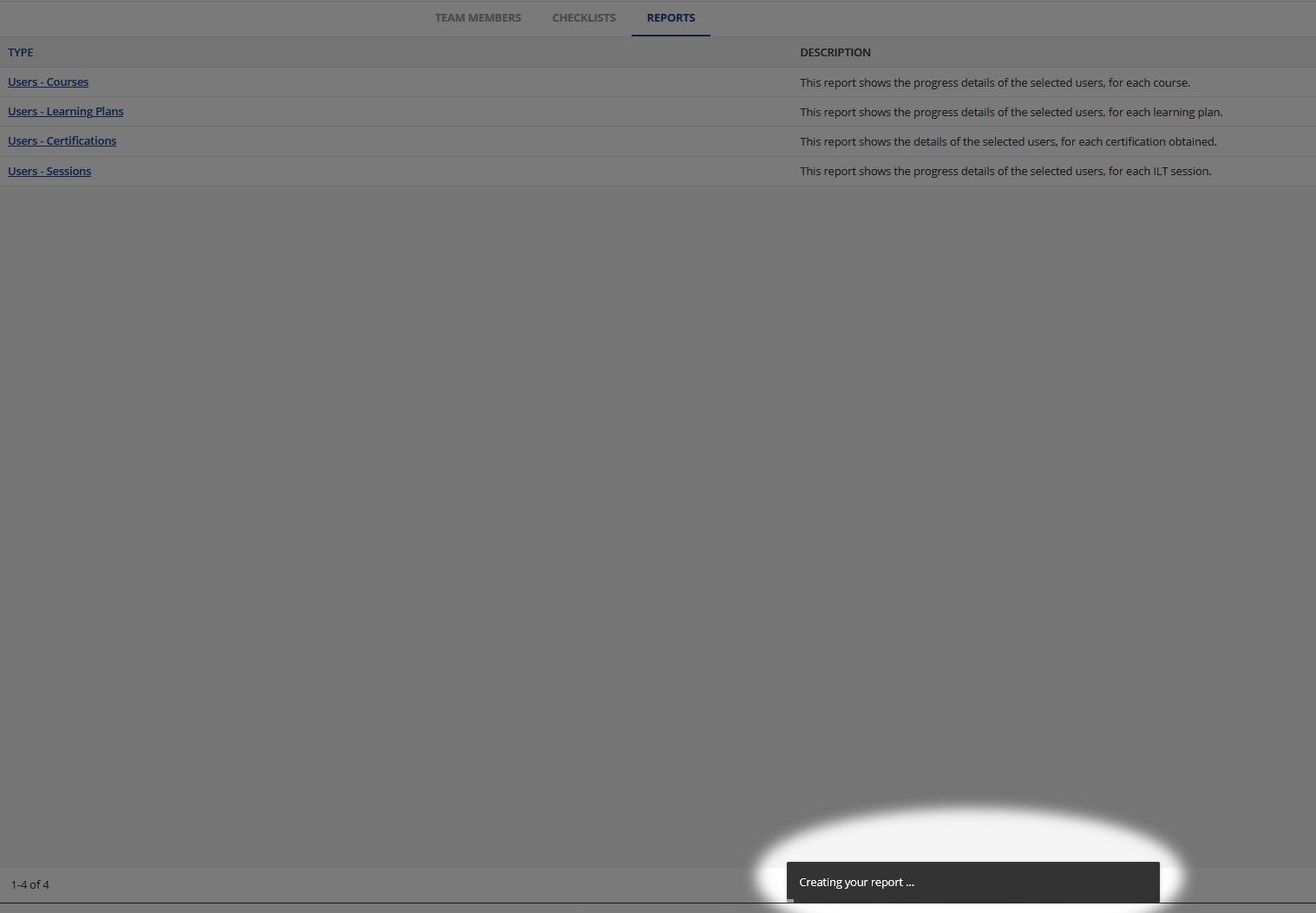
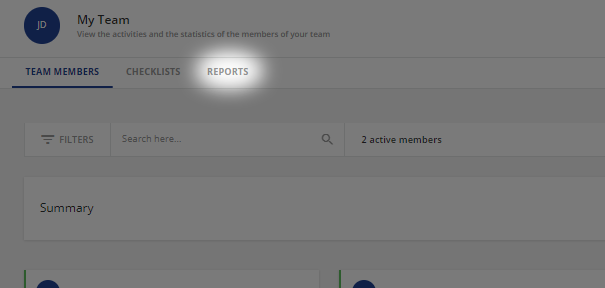
Reports may be accessed by clicking theREPORTStab on your My Team page.
1.
There are 4 available reports:Users - Courses
DESCRIPTION :
This report shows the progress details of the selected users, for each course.
This report shows the progress details of the selected users, for each course.
ENROLLMENT DATE :
- All Dates
- Select Date
- Enrollment Date
- is before
- is after
- is in the range
- Type
- relative
- absolute
- Not Available if is in the range is selected under Enrollment Date
- Days ago
- Enter in the amount of days in the past to have the report go back to.
- Not Available if is in the range is selected under Enrollment Date
- Not Available if absolute is selected under Type
- To
- Select the date the report should run before or after the enrollment date.
- Not Available if relative is selected under Type
- From
- Select the start date the report should start on the enrollment date.
- Only available if is in the range is selected under Enrollment Date
- Enrollment Date
Course Enrollment Status :
- All Statuses are selected by default.
- Select or de-select each status by clicking the check box next to each status.
- Completed
- In Progress
- Enrolled
- Waitlist
- Suspended
- Enrollments to confirm
- Overbooking
Users - Learning Plans
DESCRIPTION :
This report shows the progress details of the selected users, for each learning plan.
This report shows the progress details of the selected users, for each learning plan.
ENROLLMENT DATE :
- All Dates
- Select Date
- Enrollment Date
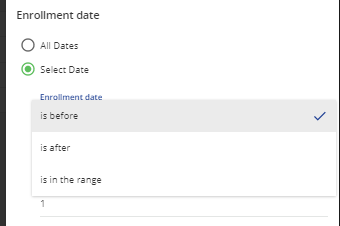
- is before
- is after
- is in the range
- Type
- relative
- absolute
- Not Available if is in the range is selected under Enrollment Date
- Days ago
- Enter in the amount of days in the past to have the report go back to.
- Not Available if is in the range is selected under Enrollment Date
- Not Available if absolute is selected under Type
- To
- Select the date the report should run before or after the enrollment date.
- Not Available if relative is selected under Type
- From
- Select the start date the report should start on the enrollment date.
- Only available if is in the range is selected under Enrollment Date
- Enrollment Date
Course Enrollment Status :
- All Statuses are selected by default.
- Select or de-select each status by clicking the check box next to each status.
- Completed
- In Progress
- Enrolled
- Waitlist
Users - Certifications
DESCRIPTION :
This report shows the details of the selected users, for each certification obtained.
This report shows the details of the selected users, for each certification obtained.
HIERARCHY :
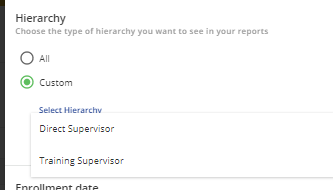
- All
- Custom
- Director Supervisor
- Training Supervisor
Users - Sessions
DESCRIPTION :
This report shows the progress details of the selected users, for each In Person or Webinar sessions.
This report shows the progress details of the selected users, for each In Person or Webinar sessions.
HIERARCHY :
- All
- Custom
- Director Supervisor
- Training Supervisor
ENROLLMENT DATE :
- All Dates
- Select Date
- Enrollment Date
- is before
- is after
- is in the range
- Type
- relative
- absolute
- Not Available if is in the range is selected under Enrollment Date
- Days ago
- Enter in the amount of days in the past to have the report go back to.
- Not Available if is in the range is selected under Enrollment Date
- Not Available if absolute is selected under Type
- To
- Select the date the report should run before or after the enrollment date.
- Not Available if relative is selected under Type
- From
- Select the start date the report should start on the enrollment date.
- Only available if is in the range is selected under Enrollment Date
- Enrollment Date
Course Enrollment Status :
- All Statuses are selected by default.
- Select or de-select each status by clicking the check box next to each status.
- Completed
- In Progress
- Enrolled
- Waitlist
- Suspended
- Enrollments to confirm
2.
Click theSavebutton in lower right corner.3.
Once report has been saved, move your mouse to the end of the row for the report and click the 3 dots .
4.
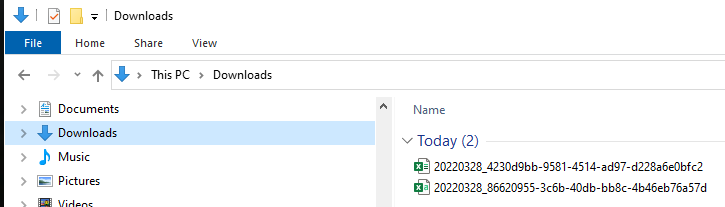
Once clicked you will have 2 options :- Edit
- Export As
- CSV
- Comma Seperated Values
- Opens with Microsoft Excel
- XLS
- Excel Spreadsheet file
- Opens with Microsoft Excel
- CSV
If you do NOT know which format to select, please select XLS